.svg)

The quality of an AI answer depends on the quality of the question, and it's one of the biggest reasons legal teams hesitate to rely on AI for more complex legal work. Most people don't have time to learn prompt engineering. In-house lawyers shouldn't have to.
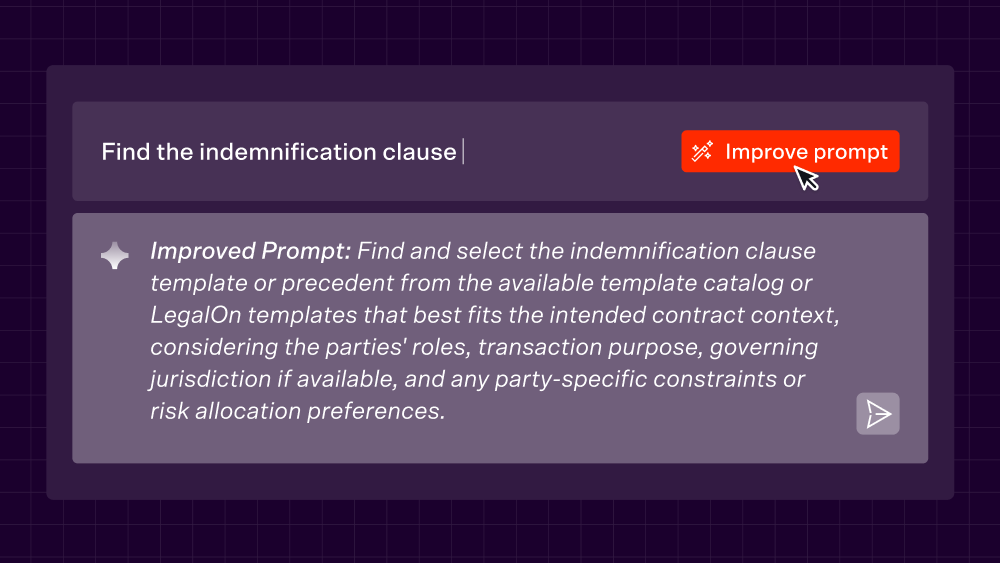
LegalOn’s Improve Prompt feature removes that barrier. Type what you'd ask a colleague, in plain English, and with one click the LegalOn Assistant rewrites your question into a precise, legally structured prompt. Every rewritten prompt is editable—once you've got it right, save it to reuse and even share with your team.
Here are some of the ways in-house legal teams are using the new Improve Prompt feature in LegalOn right now.
1. Contract Clause Extraction
Use case:
Drafting from scratch, or swapping in a clause during redlines, when you need something more tailored than a generic template pull.
Before:
Find the indemnification clause
After:
Find and select an appropriate indemnification clause from the available template catalog or LegalOn templates, taking into account the intended contract type, party positions, jurisdiction or governing law if specified, covered losses and third-party claims, defense obligations, notice and cooperation requirements, limitations of liability, exclusions, and any party-specific risk allocation preferences, and provide a concise rationale for the selected clause.
Why it matters:
A one-line request like "find the indemnification clause" assumes the LegalOn Assistant already knows which party you represent, what jurisdiction applies, and what kind of deal you're drafting for. It doesn't. Improve Prompt fills in the questions a senior lawyer would ask before pulling a clause. Who bears the risk? What's excluded? What's the governing law? The result is a clause with a rationale you can defend in a negotiation.
Try it: Sign in to open the LegalOn Assistant, type any prompt, and click "Improve Prompt" to see it rewritten in real time.
2. Playbook Gap Check
Use case:
Fast-turnaround reviews where you need to know not just if something's off, but where, how bad, and what to do about it.
Before:
Does this contract match our playbook?
After:
Review the attached contract against our playbook and identify whether each relevant provision conforms to, deviates from, or is missing relative to the playbook requirements, with concise explanations of any legal or business risks, negotiation points, and recommended revisions needed to bring the contract into alignment.
Why it matters:
"Does this match?" invites a yes-or-no answer. Playbook review isn't a pass/fail exercise. "Close enough" and "missing entirely" require very different responses. The improved prompt forces a structured breakdown — conforms, deviates, or missing — each with the business risk attached and a suggested fix. That's the difference between a status update and something you can hand to a negotiating counterpart.
Note: The LegalOn Assistant won't recognize your playbook automatically. Upload or select the playbook file first using the file upload feature, then run the prompt.
Try it: Sign in to open the LegalOn Assistant, type any prompt, and click "Improve Prompt" to see it rewritten in real time.
3. Risk Summary
Use case:
First-pass triage on any incoming agreement, especially when you're deciding how much attention a contract deserves before it goes further in the review queue.
Before:
What are the risks in this agreement?
After:
Review the attached agreement and identify the key legal and business risks, focusing on obligations, liability, indemnities, termination rights, payment terms, confidentiality, intellectual property, compliance requirements, and any unusual or one-sided provisions. Explain each risk clearly, indicate its likely severity from the perspective of the party I represent, and suggest practical negotiation points or mitigations where appropriate.
Why it matters:
"What are the risks" is the question every in-house lawyer asks dozens of times a week. It's also the question most likely to get a shallow answer if the AI doesn't know where to look. The improved version names the categories (liability, IP, compliance, one-sided terms) and, critically, asks for severity from your side of the table. A risk that's minor for the other party might be material for you. That framing alone can change how a review gets prioritized.
Try it: Sign in to open the LegalOn Assistant, type any prompt, and click "Improve Prompt" to see it rewritten in real time.
4. Comparison Across Versions
Use case:
Reviewing a counterparty's revised draft against your last version or reconciling two negotiation tracks before a call.
Before:
Compare these two contracts
After:
Compare the two attached contracts and identify the key legal and business differences between them, focusing on changes in obligations, rights, liabilities, termination, payment terms, confidentiality, governing law, and any other materially different provisions; explain the practical impact of each difference clearly and concisely.
Why it matters:
Redline comparisons often pull up dozens of surface-level edits (a moved comma, a renumbered section) buried alongside the two or three changes that shift risk. "Compare these two contracts" doesn't tell the Assistant which differences matter. The improved prompt directs it to focus on the categories with real legal and business weight, and to explain impact, not just difference.
Try it: Sign into open the LegalOn Assistant, type any prompt, and click "Improve Prompt" to see it rewritten in real time.
Every one of these prompts started as something an attorney would type in seconds. The gap between that question and a genuinely useful answer is where prompt engineering normally happens. Improve Prompt closes that gap—no prompt engineering required.
Also New: Attach Files to Prompts
Attach a file. Save the prompt. Reuse it with the file already there.
1. Check every agreement against your privacy policy.
Attach your privacy policy to a saved prompt like "flag anything that conflicts with our data handling standards." Every vendor agreement you run through it gets checked against the same standard.
2. Turn your best brief into a template.
Attach a brief you're proud of to a prompt like "draft a brief in this structure and tone." Reuse it for the next matter, and the Assistant follows your format — same structure, new facts.
3. Pair it with Improve Prompt
Save a sharpened prompt with its reference file attached, and every teammate who reuses it gets the same structured question with the same context.
Try it: Sign in to open the LegalOn Assistant, find a prompt, and attach a file to save for use again in the future
Improve Prompt and the ability to attach files are available in LegalOn today.
Not a LegalOn customer? Book a demo to see Improve Prompt in action.